YOUR ENTIRE HOME.
ONE EFFORTLESS SCREEN.
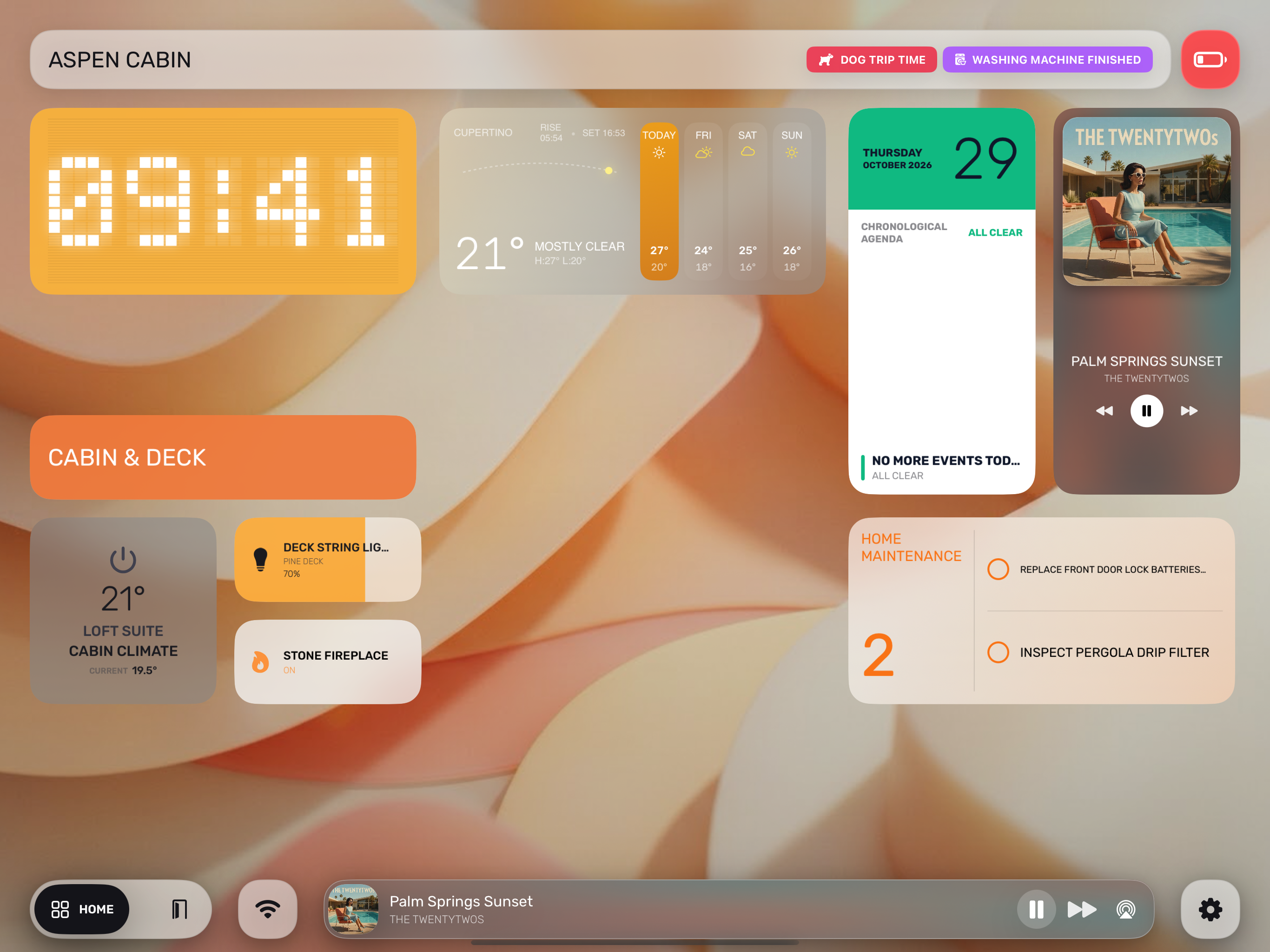
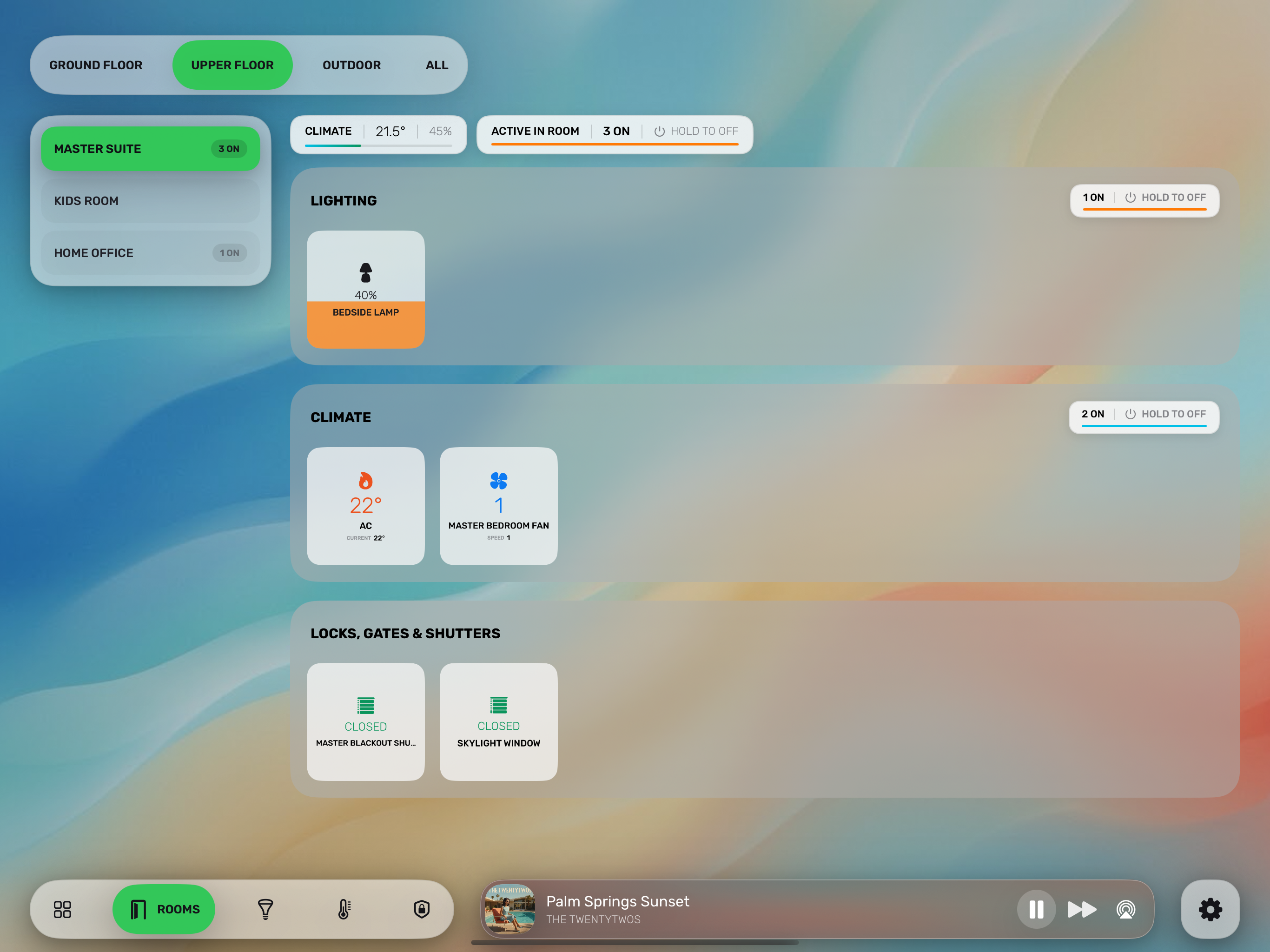
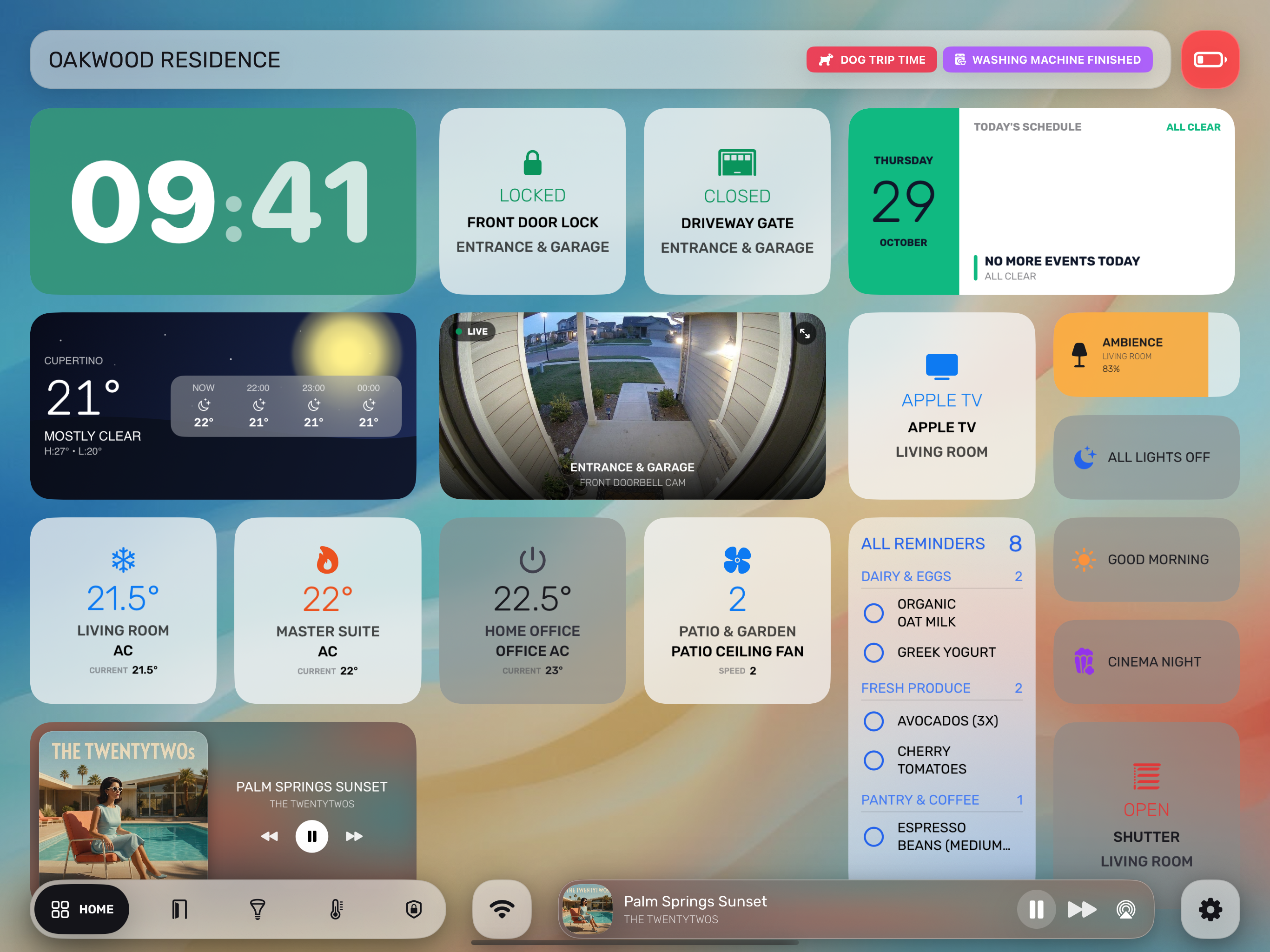
A dedicated wall and desk dashboard built natively for Apple HomeKit. Control lighting, climate, security cameras, music, and family groceries from a single tactile canvas.
Designed To Feel Instant & Natural
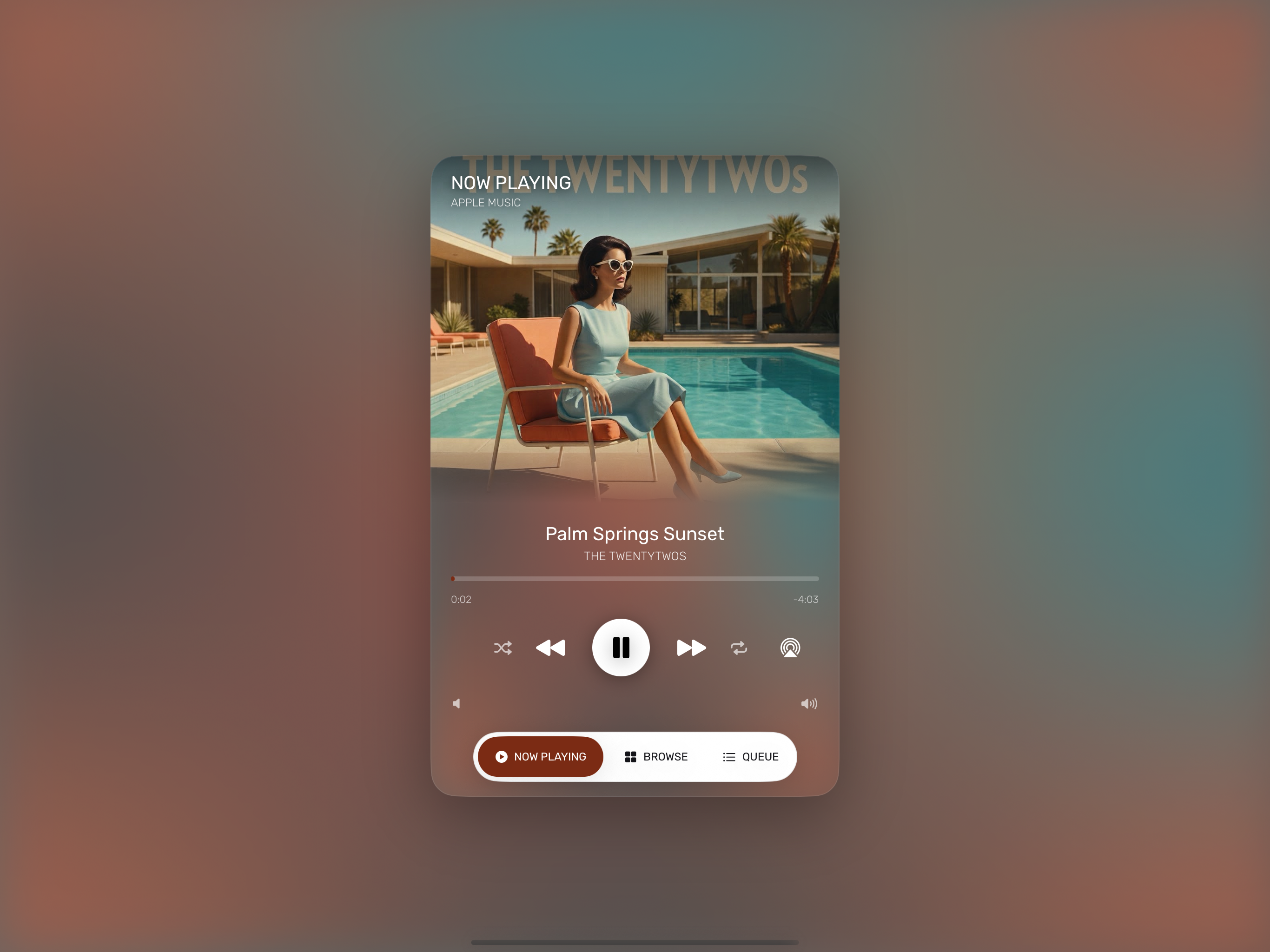
Apple Music & Spotify Mini-Player
Persistent bottom music bar with swipe-to-skip gestures, AirPlay speaker routing, and a full-screen player bathed in live album colors.
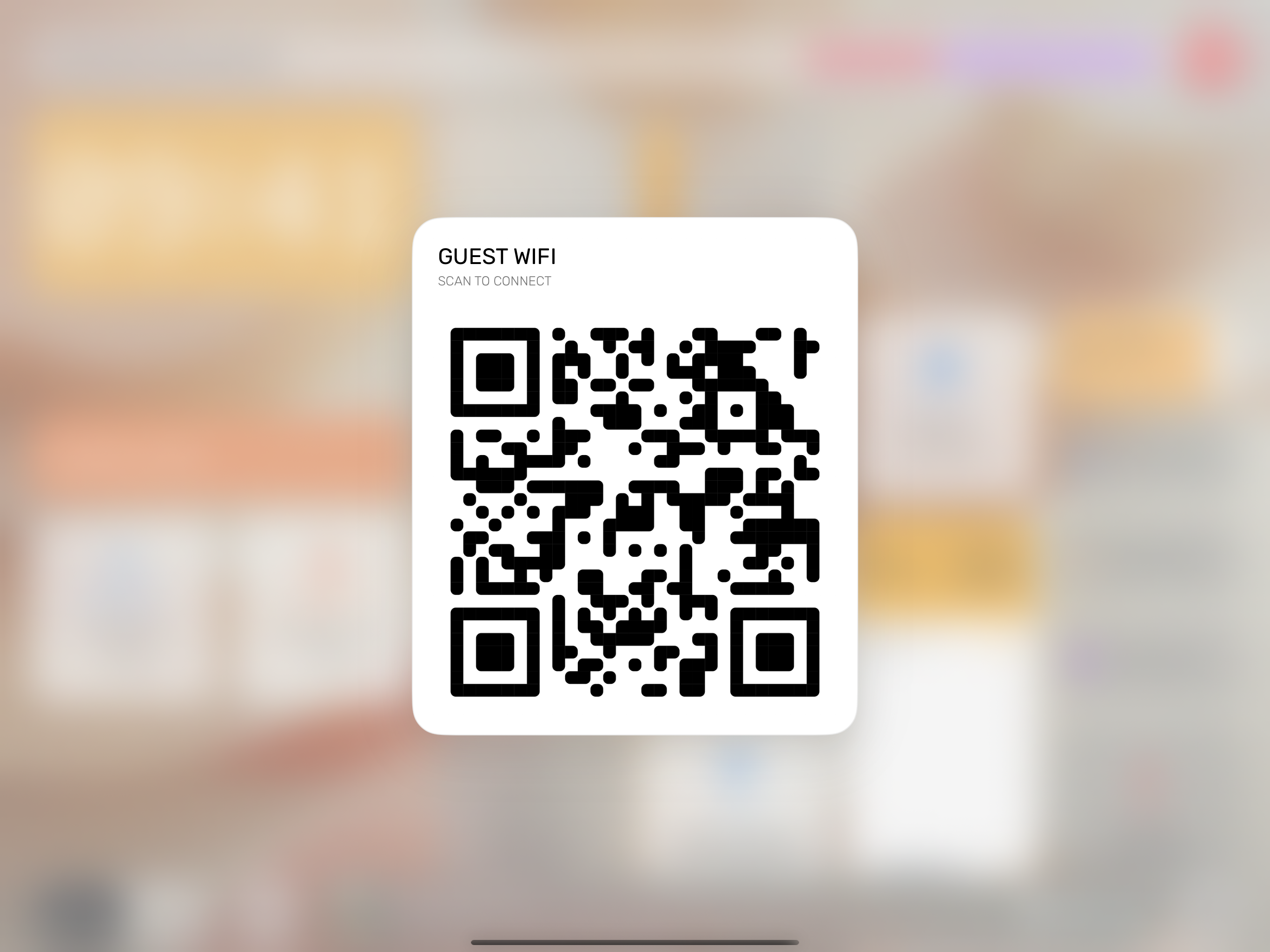
One-Tap Guest Wi-Fi QR
Display a high-contrast QR code in one tap so visitors can join your home Wi-Fi network with a quick camera scan.
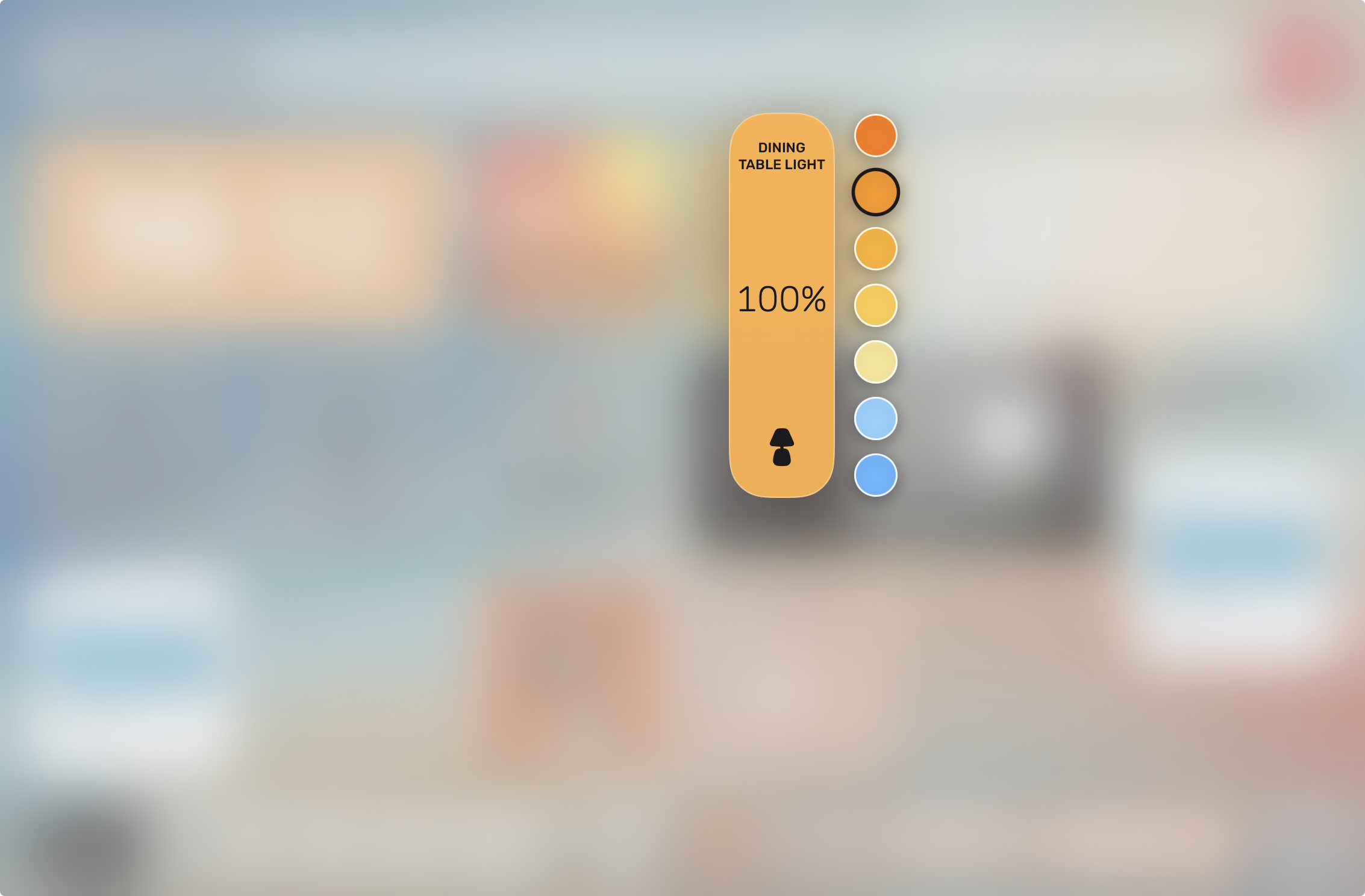
0.5s Hold & Slide Lighting Dimmer
Hold any lighting card for half a second and slide your finger to dim at 120FPS or pick floating warmth and color presets.
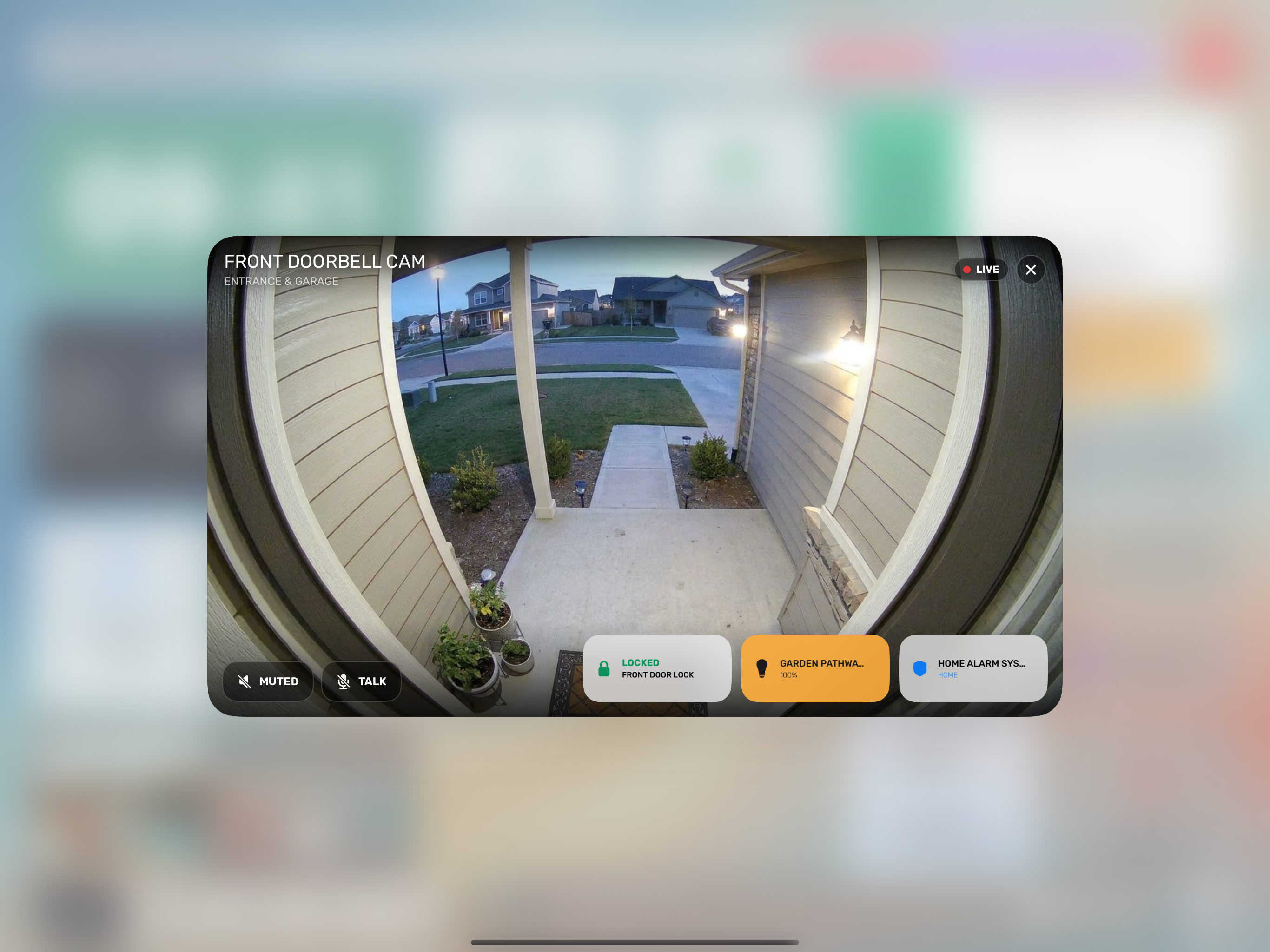
Doorbell Auto-Popup & Quick Actions
Automatically opens live video when the doorbell rings, featuring Two-Way Talk and up to 3 accessory buttons right inside the video footer.
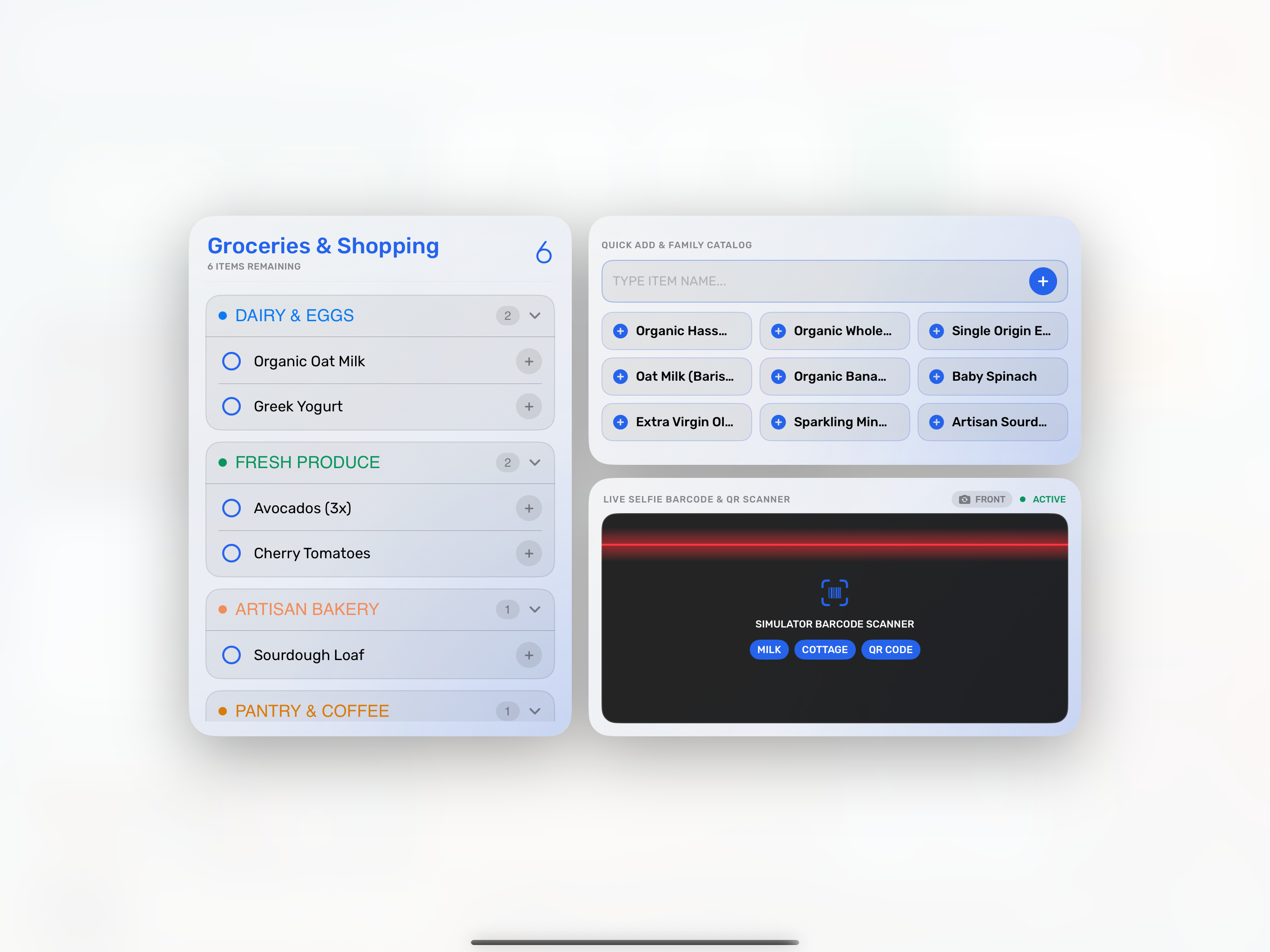
Hands-Free Kitchen Barcode Workstation
Scan groceries hands-free with front-screen softbox lighting, quick-add family staples, and categorized Apple Reminders lists.
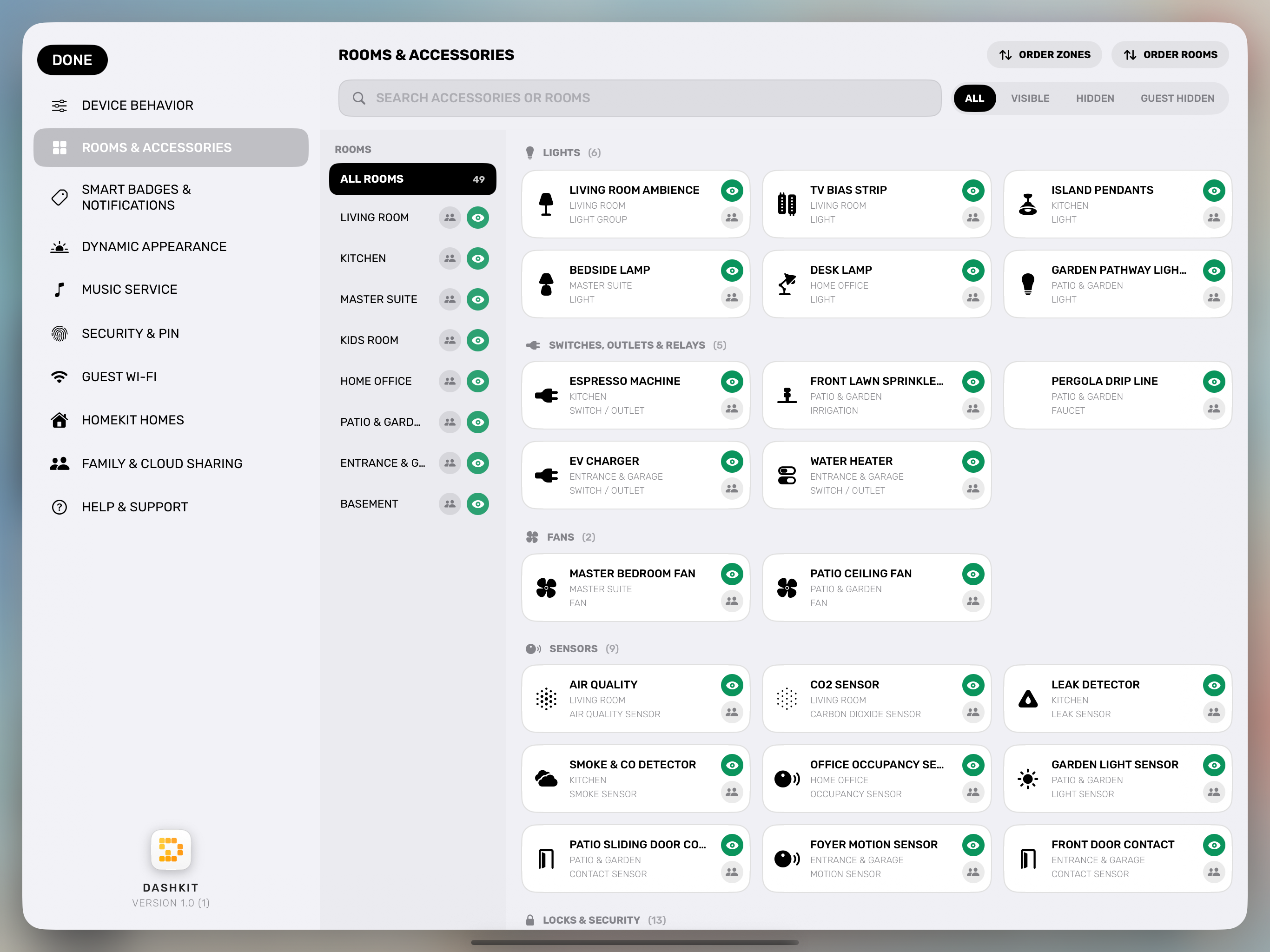
One-Tap Declutter & Guest Hiding
Hide unused rooms or switches from dashboards or from guests in one tap while keeping them 100% active for automations and alerts.
12 Reasons DashKit Stands Apart
Sensor & Schedule Day/Night Profiles
Automatically switch between Day, Night, and Standby modes on a daily schedule or instantaneously when any HomeKit light sensor or switch changes.
Smart Header Status Badges
Create custom status pills triggered by single or multi-accessory AND/OR conditions, with independent display and alert switches per device.
24/7 Central Hub Push Notifications
Designate your home iPad or Mac as a Central Hub to dispatch instant custom push notifications to your iPhone anywhere in the world, even when the app is closed.
Universal Low-Battery Radar
Monitors battery levels across all HomeKit accessories and the host iPad itself, displaying the exact replacement battery model needed (`CR2032` / `CR123A`).
Airbnb-Grade Guest Mode & Wi-Fi QR
Engage Guest Mode via menu or HomeKit switch to hide private rooms, calendars, and reminders on the wall iPad while pinning a one-tap Guest Wi-Fi QR code.
Kiosk Lock & Secret Header Gateway
Lock the screen into a PIN-protected standby clock, or hide the Settings button completely and unlock settings by holding the Home title for 0.5 seconds.
Hands-Free Kitchen Barcode Scanner
Wave groceries in front of the camera to add items directly to Apple Reminders with an iCloud-synced family catalog and Lock Screen / Control Center shortcuts.
Doorbell Auto-Popup & Quick Actions
Automatically presents live widescreen video when the doorbell rings, complete with smart-unmute intercom and 3 customizable quick-action cards.
Adaptive 2–10 Column Grid & Custom Tabs
Customize each section from 2 columns on iPhone up to 10 columns on wide iPad and Mac displays, and build up to 3 independent custom dashboard tabs.
Declutter & Smart Climate Controls
Hide unused rooms or switches from dashboards without losing them in automations, and control ACs, multi-speed ceiling fans, and irrigation timers effortlessly.
Designer Weather, Calendar, Clocks & Photos
Personalize your canvas with 6 Weather styles, 6 dynamic-color Calendar styles, 6 Watch-Face Clocks, and a Photo Slideshow widget with fullscreen zoom.
iCloud Family Sharing & Zero-Server Privacy
Invite family members with Editor or Read-Only permissions using 100% private Apple HomeKit and iCloud sync—with zero external servers or tracking.
Looking for detailed setup instructions or gesture tips?
Search the complete interactive DashKit User Manual & Help Center.